
How can we help?
Squawker Online
Squawker PC Manual
- The Main Window at a Glance
- Connect Panel - Managing Scanner/Radio Profiles
- Range Search: Filtering by Location
- The Aviation Tab - Quick Reference Lookups
- Select Database: Switching Between Datasets
- The Select Panel Toolbar - Filtering & Selecting Rows
- The Export Panel - Programmer & File Exports
- The General Panel - Reference Tools & Live Windows
- Aviation VHF/UHF Database - Search Options
- Aviation HF Database Search Options
- Active Mil Database - Search Options
- Common Scanner Frequencies Database -Search Options
- WTR (Business) Database - Search Options
- Amateur Repeaters Database - Search Options
- Air Display Teams Database - Search Options
- Marine HF Database Search Options
- The Squawker Connect Window: Layout Overview
- Live Scan: Matching a Received Frequency
- Radio Controls (Uniden Models Only)
- Log History - All Entries, Unique Frequencies & Managing Your Log
- Adding Notes to a Frequency
- Auto Submit & Manual Submit
- Exporting Your Connect Log
- Recording Audio of Logged Transmissions
- Recording Folders - Standard vs Extended, and How Groups Are Named
- Playing Back, Finding & Deleting Recordings
- Scanner Follow: The Map Shows Who Your Scanner Is Hearing
- Tune, Track and Scan These: Driving Your Scanner from the Map
- Programmer Screen at a Glance
- UBC125XLT/C Programmer - Overview & Getting Connected
- Filling a Bank — The Data Dropdown, Categories & the Overwrite Prompt
- Quick Fill - Auto-Populating Banks Near Your Location - UBC125XLT/C
- Editing, Sorting & Deleting Channels - UBC125XLT/C
- Reading, Backing Up & Restoring - UBC125XLT/C
- Writing to Your Scanner - UBC125XLT/C
- SDS100/SDS200/UBCD3600XLT Programmer Screen at a Glance
- SDS100/SDS200/UBCD3600XLT Programmer - Overview & Getting Connected
- Filling a Favorites List - The Data Dropdown, New Favorite & Add To
- Quick Fill - Auto-Populating a Full Set of Favorites Lists Near Your Location
- Editing, Sorting & Deleting - Favorites Lists, Systems, Departments & Channels
- Reading, Backing Up & Restoring - SDS100/SDS200/UBCD3600XLT
- Writing to Your Scanner - Mass Storage Mode
- BCT15X/UBC3500XLT/UBC800XLT Programmer Screen at a Glance
- BCT15X/UBC3500XLT/UBC800XLT Programmer - Overview & Getting Connected
- Model Differences - BCT15X, UBC3500XLT & UBC800XLT
- Filling Systems & Groups - Quick Fill, the Data Dropdown & Add To
- Editing, Sorting & Deleting Systems, Groups & Channels
- Reading, Backing Up & Restoring - BCT15X/UBC3500XLT/UBC800XLT
- Writing to Your Scanner - BCT15X/UBC3500XLT/UBC800XLT
- BCD160DN/BCD260DN Programmer Screen at a Glance
- BCD160DN/BCD260DN Programmer - Overview & Getting Connected
- Filling a Bank - The Data Dropdown & the Overwrite Prompt
- Quick Fill - Auto-Populating Banks Near Your Location - BCD160DN/BCD260DN
- Editing, Sorting & Deleting Channels - BCD160DN/BCD260DN
- Reading, Backing Up & Restoring - BCD160DN/BCD260DN
- Writing to Your Scanner - BCD160DN/BCD260DN
- Quansheng UV-K1/K5 Programmer Screen at a Glance
- Overview, Firmware Requirement & Getting Connected
- Receive Only vs Transceiver Mode
- Filling Scan Lists - Quick Fill, Program List & the Data Dropdown
- Editing, Sorting & Deleting Channels - Quansheng UV-K1/K5
- Reading, Backing Up & Restoring - Quansheng UV-K1/K5
- Writing to Your Radio
Interactive Map
- Live Flights - Watching Aircraft in Real Time
- Military Flight Filters & the Live Military Board
- Reading the Aircraft Info Panel
- Emergency Squawk Alerts
- Searching for a Specific Aircraft (Watchlist Mode)
- Setting Up Custom Alert Zones
- Watching Specific Airfields
- The Aircraft Table
- Listen On: How the Map Predicts a Frequency
- The Live Military Board
- Customising the Aircraft Data Block
WTRBrowser
Active Mil
UKAFG Printed Guide
Scanner Manuals
- Overview & What's in the Box
- Controls, Display & Turning It On
- Basic Settings
- Understanding Scanning, Searching & Banks
- Programming Channels Manually
- Scanning & Priority Modes
- Service, Custom & Quick Search
- Close Call RF Capture
- Reference & Connecting to a Computer
- Common Questions & Troubleshooting
- BCT15X Overview, Features & Specifications
- BCT15X Setting Up: Power, Antenna, Speaker & Vehicle Installation
- BCT15X Keys, Controls & the FUNCTION Button
- BCT15X Reading the Display & Icons
- BCT15X Menu Tree & Operating Modes at a Glance
- BCT15X Conventional vs Trunked Systems Explained
- BCT15X Programming a Conventional System
- BCT15X Programming a Trunked System (Motorola, EDACS & LTR)
- BCT15X Loading Frequencies From Squawker PC & Squawker Online
- BCT15X Talk Group ID Formats, Fleet Maps & Band Plans
- BCT15X System, Site, Group & Channel Options Reference
- BCT15X Scan Mode, Search Mode & Hold Mode
- BCT15X Lockouts, Quick Keys, Startup Keys & Number Tags
- BCT15X Priority Scan & Alert Settings
- BCT15X Close Call
- BCT15X Searching: Service, Custom, Quick Search & Search Keys
- BCT15X State-by-State Scanning & the BearTracker Warning System
- BCT15X Tone-Out Mode
- BCT15X Weather Mode & SAME Alerts
- BCT15X Band Scope Mode
- BCT15X GPS, Location-Based Scanning & Programming Locations
- BCT15X Settings Menu, Key Safe Mode & Wired Cloning
- BCT15X Legal, Safety & Warranty Notes
- Show Remaining Articles (8) Collapse Articles
- UBCD3600XLT Overview, Features & Specifications
- UBCD3600XLT Batteries, microSD Card & Turning It On
- UBCD3600XLT Keys & Controls
- UBCD3600XLT Reading the Display & Icons
- UBCD3600XLT Understanding the Memory: Favorites Lists, Systems, Sites, Departments & Channels
- UBCD3600XLT Sentinel Software, Profiles, Firmware & Resetting
- UBCD3600XLT Setting Your Location, Range & Service Types
- UBCD3600XLT Menus, Data Naming & Settings Options
- UBCD3600XLT Managing Favorites Lists & Location Control
- UBCD3600XLT Programming Systems & System Options
- UBCD3600XLT Programming Sites & Band Plans
- UBCD3600XLT Programming Departments, Channels & Quick-Storing
- UBCD3600XLT Entering IDs, Fleet Maps & Status Bits
- UBCD3600XLT Loading Frequencies From Squawker PC & Squawker Online
- UBCD3600XLT Scanning: Quick Keys, Startup Keys & Scan Order
- UBCD3600XLT Holding, Avoids, Number Tags & Scan-Mode Tools
- UBCD3600XLT Searching: Quick Search, Custom Search & Search Keys
- UBCD3600XLT Close Call
- UBCD3600XLT Fire Tone-Out
- UBCD3600XLT Discovery Mode
- UBCD3600XLT GPS, Location Control & Digital Adjustment Mode
- UBCD3600XLT Troubleshooting & Reference Tables
- Show Remaining Articles (7) Collapse Articles
- BCD436HP/536HP Overview, Features & Specifications
- BCD436HP/536HP Power, Batteries, microSD Card & Turning On
- BCD436HP/536HP Installing: Antenna, Speaker & Vehicle Mounting
- BCD436HP/536HP Keys & Controls
- BCD436HP/536HP Reading the Display & Icons
- BCD436HP/536HP Understanding the Memory, Sentinel & Database Updates
- BCD436HP/536HP Setting Your Location, Range & Service Types
- BCD436HP/536HP Menus, Data Naming, Display & Settings Options
- BCD536HP Wi-Fi Setup
- BCD436HP/536HP Managing Favorites Lists, Location Control & Scan Selection
- BCD436HP/536HP Programming Systems & System Options
- BCD436HP/536HP Programming Sites & Band Plans
- BCD436HP/536HP Programming Departments, Channels & Quick-Storing
- BCD436HP/536HP Entering IDs & Status Bits
- BCD436HP/536HP Loading Frequencies From Squawker PC & Squawker Online
- BCD436HP/536HP Scanning: Quick Keys, Startup Keys, Scan Order & Priority
- BCD436HP/536HP Holding, Avoids, Number Tags & Scan-Mode Tools
- BCD436HP/536HP Searching: Quick Search, Custom Search & Search Keys
- BCD436HP/536HP Close Call
- BCD436HP/536HP Weather Operation & SAME Alerts
- BCD436HP/536HP Fire Tone-Out
- BCD436HP/536HP Discovery Mode
- BCD436HP/536HP GPS & P25 Adjustment Mode
- BCD436HP/536HP Troubleshooting & Reference Tables
- BCD436HP/536HP Legal, Safety & Warranty Notes
- Show Remaining Articles (10) Collapse Articles
- BCD160DN Overview, Features & Specifications
- BCD160DN Scanning Basics: Scanning, Searching, Tones & Banks
- BCD160DN Batteries, Charging & Turning On
- BCD160DN Keys & Controls
- BCD160DN Reading the Display & Icons
- BCD160DN Menus, Entering Data & Settings
- BCD160DN Programming Channels & Banks
- BCD160DN Loading Frequencies From Squawker PC & Squawker Online
- BCD160DN Searching: Service Search, Custom Search, Quick Search & Search Keys
- BCD160DN Priority Scan
- BCD160DN Weather Operation & SAME Alerts
- BCD160DN Tone-Out
- BCD160DN Band Scope Mode
- BCD160DN Reference Tables & How Do I...?
- BCD160DN Legal, Safety & Warranty Notes
- BCD260DN Overview, Features & Specifications
- BCD260DN Scanning Basics: Scanning, Searching, Tones & Banks
- BCD260DN Installing, Powering & Turning On
- BCD260DN Keys & Controls
- BCD260DN Reading the Display & Icons
- BCD260DN Menus, Entering Data & Settings
- BCD260DN Programming Channels & Banks
- BCD260DN Loading Frequencies From Squawker PC & Squawker Online
- BCD260DN Searching: Service Search, Custom Search, Quick Search & Search Keys
- BCD260DN Priority Scan
- BCD260DN Weather Operation & SAME Alerts
- BCD260DN Tone-Out
- BCD260DN Band Scope Mode
- BCD260DN Reference Tables & How Do I...?
- BCD260DN Legal, Safety & Warranty Notes
- SDS100E Overview, Features & Specifications
- SDS100E Battery, Charging, microSD Card & First Steps
- SDS100E Controls, Keys & Indicators
- SDS100E Understanding the Memory, Sentinel & Database Updates
- SDS100E Setting Your Location, Range & Service Types
- SDS100E Menu Reference & Settings
- SDS100E Customising the Display
- SDS100E Managing Favorites Lists & Location Control
- SDS100E Programming Systems, Sites, Departments & Channels
- SDS100E Loading Frequencies From Squawker PC & Squawker Online
- SDS100E Scanning: Quick Keys, Startup Keys, Scan Order & Priority
- SDS100E Holding, Avoids, Replay & Recording
- SDS100E Searching: Quick Search, Custom Search & Search Keys
- SDS100E Close Call
- SDS100E Weather Operation & SAME Alerts
- SDS100E Fire Tone-Out
- SDS100E Discovery Mode
- SDS100E Analyze: System Status & LCN Finder
- SDS100E Troubleshooting & Reference Tables
- SDS100E Legal, Safety & Compliance Notes
- Show Remaining Articles (5) Collapse Articles
- SDS200E Overview, Features & Specifications
- SDS200E Installing, Powering & Turning On
- SDS200E Controls, Keys & Indicators
- SDS200E Understanding the Memory, Sentinel & Database Updates
- SDS200E Setting Your Location, Range & Service Types
- SDS200E Menu Reference & Settings
- SDS200E Customising the Display
- SDS200E Managing Favorites Lists & Location Control
- SDS200E Programming Systems, Sites, Departments & Channels
- SDS200E Loading Frequencies From Squawker PC & Squawker Online
- SDS200E Scanning: Quick Keys, Startup Keys, Scan Order & Priority
- SDS200E Holding, Avoids, Replay & Recording
- SDS200E Searching: Quick Search, Custom Search & Search Keys
- SDS200E Close Call
- SDS200E Weather Operation & SAME Alerts
- SDS200E Fire Tone-Out
- SDS200E Discovery Mode
- SDS200E Analyze: System Status & LCN Finder
- SDS200E Troubleshooting & Reference Tables
- SDS200E Legal, Safety & Compliance Notes
- Show Remaining Articles (5) Collapse Articles
- TRX-1 Overview, Features & Package Contents
- TRX-1 Objects, Scanlists & the Library
- TRX-1 Setup: Antenna, Batteries, Headphones & Power
- TRX-1 Keypad, Controls & Turning On
- TRX-1 First Power-Up: Bandplan & Clock
- TRX-1 Understanding the Display & Icons
- TRX-1 Micro SD Card, EZ Scan Software & Updates
- TRX-1 Programming From the Library: Set Location & Browse Library
- TRX-1 Programming Conventional Channels & Editing Objects
- TRX-1 Programming Trunked Systems & Talkgroups
- TRX-1 DMR & NXDN Systems With EZ Scan PC
- TRX-1 Alert LED Settings
- TRX-1 Recording, Playback & IF Output
- TRX-1 Scanning, Monitoring, Skip, Lockout & Priority
- TRX-1 Searching: Spectrum Sweeper, Service & Limit Search
- TRX-1 Weather, SAME & SKYWARN
- TRX-1 V-Scanner Storage & Global Settings
- TRX-1 Specifications & Frequency Coverage
- TRX-1 Loading Frequencies From Squawker PC & Squawker Online
- TRX-1 Troubleshooting & SD Card Error Codes
- TRX-1 Legal, Safety, Warranty & Support
- Show Remaining Articles (6) Collapse Articles
- TRX-2E Overview, Features & Package Contents
- TRX-2E Objects, Scanlists & Scan Sets
- TRX-2E Setup: Antenna, Headphones & Speakers
- TRX-2E Remote Head, Desktop & Mobile Installation
- TRX-2E Keypad, Rotary Encoder & Controls
- TRX-2E First Power-Up: Bandplan, Clock & Password
- TRX-2E Understanding the Display & Icons
- TRX-2E SD Card, EZ Scan Software & Updates
- TRX-2E Programming Conventional Channels & Editing Objects
- TRX-2E Programming Trunked Systems, DMR & NXDN
- TRX-2E Alert LED Settings
- TRX-2E Recording, Playback, IF Output & Clock
- TRX-2E Scanning, Monitoring, Skip, Lockout & Priority
- TRX-2E Searching: Spectrum Sweeper, Service & Limit Search
- TRX-2E V-Scanner Storage & Global Settings
- TRX-2E Specifications
- TRX-2E Bandplans & Frequency Coverage
- TRX-2E Loading Frequencies From Squawker PC & Squawker Online
- TRX-2E Troubleshooting & SD Card Error Codes
- TRX-2E Legal, Safety, Warranty & Support
- Show Remaining Articles (5) Collapse Articles
- IC-R15 Overview, Features & Accessories
- IC-R15 Battery, Charging & Power
- IC-R15 Panel, Keys & Display
- IC-R15 Getting Started: Accessories, microSD Card & First Steps
- IC-R15 Menu System, Quick Menu & Entering Text
- IC-R15 Receiving: Dualwatch, Squelch, Modes & Tuning
- IC-R15 Memory Channels: Groups, Categories & Editing
- IC-R15 Tone Squelch, DTCS & Duplex
- IC-R15 Scanning: VFO, Memory & Tone Scans
- IC-R15 FM Radio Mode
- IC-R15 Recording & Playback
- IC-R15 microSD Card: Backup, CSV Import/Export & SD Card Mode
- IC-R15 Simple Mode
- IC-R15 Bluetooth
- IC-R15 SET Mode Reference
- IC-R15 Screen Capture, Opening Picture & Cloning
- IC-R15 Firmware Updates & Maintenance
- IC-R15 Troubleshooting & Resetting
- IC-R15 Specifications & Options
- IC-R15 Loading Frequencies From Squawker PC & Squawker Online
- IC-R15 Safety, Battery Cautions & Compliance
- Show Remaining Articles (6) Collapse Articles
- IC-R30 Overview, Features & Accessories
- IC-R30 Battery, Charging & Power
- IC-R30 Panel, Keypad & Display
- IC-R30 Getting Started: Accessories, microSD Card & First Steps
- IC-R30 Menu System, Quick Menu & Entering Text
- IC-R30 Receiving: Bands, Modes, Dualwatch & Tuning
- IC-R30 Squelch, Attenuator, RF Gain & Receive Functions
- IC-R30 Band Scope
- IC-R30 Digital Modes: D-STAR, P25, dPMR, NXDN & DCR
- IC-R30 Tone Squelch, DTCS & Duplex
- IC-R30 Memory Channels: Groups, Writing & Editing
- IC-R30 Scanning: VFO, Memory, Tone & Near Station Scans
- IC-R30 Priority Watch & Home Channel
- IC-R30 GPS: Position, Memory, Alarm & Logger
- IC-R30 Recording & Playback
- IC-R30 microSD Card: Backup, CSV Import/Export & SD Card Mode
- IC-R30 Bluetooth & the RS-R30 Apps
- IC-R30 USB, CI-V & Cloning
- IC-R30 SET Menu Reference
- IC-R30 Firmware Updates, Reset & Maintenance
- IC-R30 Troubleshooting
- IC-R30 Specifications & Options
- IC-R30 Loading Frequencies From Squawker PC & Squawker Online
- IC-R30 Safety, Battery Cautions & Compliance
- Show Remaining Articles (9) Collapse Articles
- IC-R8600 Overview, Features & Accessories
- IC-R8600 Front Panel, Touch Screen & Controls
- IC-R8600 Rear Panel, Connectors & Connections
- IC-R8600 Installation, Power & Antennas
- IC-R8600 Menu, Function Screen, Quick Menu & Entering Text
- IC-R8600 Receiving: Modes, Tuning & Squelch
- IC-R8600 Meter, Locks & Antenna Selection
- IC-R8600 Spectrum Scope & Waterfall
- IC-R8600 Preamp, Attenuator, IP+ & AGC
- IC-R8600 Filters: IF Filter, Twin PBT, Notch, Noise Blanker & Noise Reduction
- IC-R8600 Tone Squelch, Digital Squelch, Descrambler & Decryption
- IC-R8600 Digital Modes & Receive History
- IC-R8600 FSK (RTTY) Decoding
- IC-R8600 Recording & Playback
- IC-R8600 SD Card, Settings & Screen Capture
- IC-R8600 Memory Channels: Groups, Writing & Editing
- IC-R8600 Scanning
- IC-R8600 Clock, Timers & NTP
- IC-R8600 Set Mode Reference
- IC-R8600 USB, LAN, CI-V & Remote Control
- IC-R8600 Maintenance, Reset, Firmware & Calibration
- IC-R8600 Troubleshooting
- IC-R8600 Specifications & Options
- IC-R8600 Loading Frequencies From Squawker PC & Squawker Online
- IC-R8600 Safety, Precautions & Compliance
- Show Remaining Articles (10) Collapse Articles
- IC-R20 Overview, Features & Accessories
- IC-R20 Batteries, Charging & Power
- IC-R20 Keys, Dials & Display
- IC-R20 Getting Started: Antenna, Strap, Belt Clip & Turning On
- IC-R20 Tuning: Bands, Modes, Frequencies & Tuning Steps
- IC-R20 Receiving: Squelch, Attenuator, RF Gain & Locks
- IC-R20 Dualwatch
- IC-R20 Band Scope
- IC-R20 Memory Channels & Banks
- IC-R20 Scanning
- IC-R20 Priority Watch
- IC-R20 Tone Squelch, DTCS, Pocket Beep & Tone Scan
- IC-R20 Duplex, AFC, Noise Functions & Antennas
- IC-R20 IC Recorder
- IC-R20 Set Mode Reference
- IC-R20 Cloning, CS-R20, CI-V & USB Driver
- IC-R20 Weather Channels & Frequency Tables
- IC-R20 Reset & Troubleshooting
- IC-R20 Specifications & Options
- IC-R20 Loading Frequencies From Squawker PC & Squawker Online
- IC-R20 Safety & Precautions
- Show Remaining Articles (6) Collapse Articles
- DJ-X100E Overview, Features & Accessories
- DJ-X100E Battery, Charging & Power
- DJ-X100E Keys, Dial, Ring & Display
- DJ-X100E Getting Started: Antenna, Turning On, Volume & Squelch
- DJ-X100E Receive Modes: Analogue, Digital & Data
- DJ-X100E Tuning: VFO Mode, Frequency Steps & Offset Step
- DJ-X100E Scanning: VFO Scans, Priority, Shift & Skip
- DJ-X100E Memory Channels, Banks & Names
- DJ-X100E Memory Scans & GPS Memory
- DJ-X100E Communication Settings (CONFIG)
- DJ-X100E FM Radio Mode
- DJ-X100E Frequency Counter & Quick Recall
- DJ-X100E GPS, Position Display, AIS & Messages
- DJ-X100E Set Mode Reference
- DJ-X100E PC Software, USB & Reset
- DJ-X100E Troubleshooting, Maintenance & Specifications
- DJ-X100E Loading Frequencies From Squawker PC & Squawker Online
- DJ-X100E Safety, Precautions & Compliance
- Show Remaining Articles (3) Collapse Articles
- AR-DV1 Overview, Features & Package
- AR-DV1 Controls, Keys & Display
- AR-DV1 Getting Started: Power, Antenna, Volume & Squelch
- AR-DV1 Receive Modes & Digital Auto Mode
- AR-DV1 Tuning: Steps, IF Bandwidth & Step Adjust
- AR-DV1 AGC, RF Gain, Noise Reduction & Notch
- AR-DV1 Tone Squelch, DCS & Descrambler
- AR-DV1 Memory Channels & Banks
- AR-DV1 Memory Scan, Pass & Scan Groups
- AR-DV1 VFO Search & Program Search
- AR-DV1 Priority, Offset & Last Channel Memory
- AR-DV1 SD Card: Recording, Backup & Restore
- AR-DV1 Clock, Alarm, Timer & Sleep
- AR-DV1 Configuration Menu Reference
- AR-DV1 Reset, Firmware Update & Troubleshooting
- AR-DV1 Specifications & Digital Mode Compatibility
- AR-DV1 Loading Frequencies From Squawker PC & Squawker Online
- AR-DV1 Safety, Care & Legal Notes
- Show Remaining Articles (3) Collapse Articles
- AR-DV10 Overview, Features & Accessories
- AR-DV10 Controls, Connectors & Display
- AR-DV10 Battery, Charging & Power
- AR-DV10 Getting Started: Antenna, Power, Volume & Frequency
- AR-DV10 Receive Modes, IF Bandwidth & Squelch
- AR-DV10 Tuning Step & Step Adjust
- AR-DV10 Audio Recording & SD Card
- AR-DV10 Memory Channels & Banks
- AR-DV10 Memory Scan, Pass & Scan Groups
- AR-DV10 Program Search, Search Banks & Groups
- AR-DV10 Priority, Offset & Signal Attenuator
- AR-DV10 Tone Squelch, DCS & Descrambler
- AR-DV10 Digital Mode Settings
- AR-DV10 Data Editor & Entering Characters
- AR-DV10 Clock & System Settings
- AR-DV10 Backup, Restore & Firmware Update
- AR-DV10 Troubleshooting & Specifications
- AR-DV10 Loading Frequencies From Squawker PC & Squawker Online
- AR-DV10 Safety, Care & Legal Notes
- Show Remaining Articles (4) Collapse Articles
- AR-DV3 Overview, Features & Options
- AR-DV3 Controls, Keys & Display
- AR-DV3 Connections & Power
- AR-DV3 Getting Started: Power, Clock, Region, Volume & Squelch
- AR-DV3 Receive Modes, Auto Mode & Digital Auto
- AR-DV3 Tuning: Steps, Step Adjust & IF Bandwidth
- AR-DV3 Digital Selective Receive & Option Menu
- AR-DV3 Attenuator, RF Amp, AGC & RF Gain
- AR-DV3 Tone Squelch, DCS, Voice Squelch & Descrambler
- AR-DV3 VFO Mode & VFO Search
- AR-DV3 Program Search, Search Banks & Groups
- AR-DV3 Cyber Search
- AR-DV3 Memory Channels & Banks
- AR-DV3 Memory Scan, Pass & Scan Groups
- AR-DV3 Priority, Offset & Audio Equaliser
- AR-DV3 SD Card: Recording, Backup & Restore
- AR-DV3 Alarm, Timer, Sleep & Last-One Memory
- AR-DV3 Configuration Menu, Reset & Firmware Update
- AR-DV3 Troubleshooting & Specifications
- AR-DV3 Loading Frequencies From Squawker PC & Squawker Online
- AR-DV3 Safety, Care & Legal Notes
- Show Remaining Articles (6) Collapse Articles
- Overview & Getting Started
- Reading the Screen & Status Bar
- Frequency & Channel Mode - Saving and Naming Channels
- Keys, Shortcuts & Side Buttons
- The Menu
- Transmit Rules - F Lock, TXLock & Power
- Scanning
- FM Broadcast Radio & Spectrum Analyzer
- Battery, Power Saving & Sleep
- Extra Features - Air Copy, RF Log, Fox Hunt & More
- Common Questions & Troubleshooting
Exporting Active Military Frequency Data
Switch to Downloads mode, then click Export for the available formats, grouped by type:
General
- Copy to Clipboard
- CSV File
- Excel File
SDR Software
- SDR# XML — replace the frequencies XML in your SDR# folder.
- SDRPlay S1B — add to your SDRPlay MEM folder or import into SDRConnect.
Scanner Software
- Uniden-x36 HPE — for SDS100, SDS200, 3600, 436, and 536; import using Sentinel, Proscan, or Butel.
- Uniden-BCT15X HPE — names formatted to 16 characters; import using Proscan or Butel.
- Uniden UBC125XLT — import using Scan125 software.
- RadioScan — XLS format for the Android RadioScan app.
- Whistler — a text file, imported via “Import Text File.”
- CHIRP — compatible with any radio or scanner supporting CHIRP.
If you’re unsure which format you need, click the info icon next to Export for a reference popup explaining each format and how to import it. Export is only available in Downloads mode, not on the Live feed.
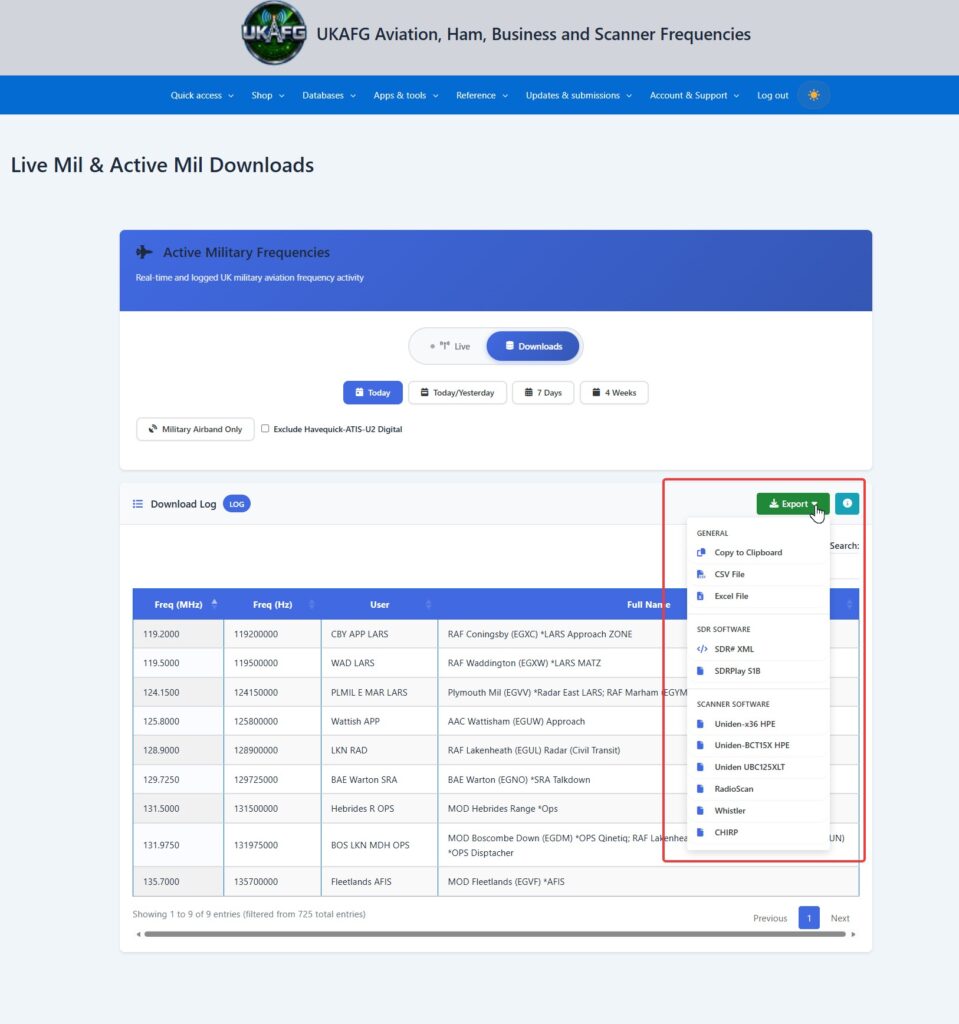
Table of Contents