Squawker Online
Squawker PC Manual
- The Main Window at a Glance
- Connect Panel - Managing Scanner/Radio Profiles
- Range Search - Filtering by Location
- The Aviation Tab - Quick Reference Lookups
- Select Database - Switching Between Datasets
- The Select Panel Toolbar - Filtering & Selecting Rows
- The Export Panel - Programmer & File Exports
- The General Panel - Reference Tools & Live Windows
- The Squawker Connect Window - Layout Overview
- Live Scan - Matching a Received Frequency
- Radio Controls - Uniden Models Only
- Log History - All Entries, Unique Frequencies & Managing Your Log
- Adding Notes to a Frequency
- Auto Submit & Manual Submit
- Exporting Your Connect Log
- Recording Audio of Logged Transmissions
- Recording Folders - Standard vs Extended, and How Groups Are Named
- Playing Back, Finding & Deleting Recordings
- Programmer Screen at a Glance
- UBC125XLT/C Programmer - Overview & Getting Connected
- Filling a Bank — The Data Dropdown, Categories & the Overwrite Prompt
- Quick Fill - Auto-Populating Banks Near Your Location - UBC125XLT/C
- Editing, Sorting & Deleting Channels - UBC125XLT/C
- Reading, Backing Up & Restoring - UBC125XLT/C
- Writing to Your Scanner - UBC125XLT/C
- SDS100/SDS200/UBCD3600XLT Programmer Screen at a Glance
- SDS100/SDS200/UBCD3600XLT Programmer - Overview & Getting Connected
- Filling a Favorites List - The Data Dropdown, New Favorite & Add To
- Quick Fill - Auto-Populating a Full Set of Favorites Lists Near Your Location
- Editing, Sorting & Deleting - Favorites Lists, Systems, Departments & Channels
- Reading, Backing Up & Restoring - SDS100/SDS200/UBCD3600XLT
- Writing to Your Scanner - Mass Storage Mode
- BCT15X/UBC3500XLT/UBC800XLT Programmer Screen at a Glance
- BCT15X/UBC3500XLT/UBC800XLT Programmer - Overview & Getting Connected
- Model Differences - BCT15X, UBC3500XLT & UBC800XLT
- Filling Systems & Groups - Quick Fill, the Data Dropdown & Add To
- Editing, Sorting & Deleting Systems, Groups & Channels
- Reading, Backing Up & Restoring - BCT15X/UBC3500XLT/UBC800XLT
- Writing to Your Scanner - BCT15X/UBC3500XLT/UBC800XLT
- BCD160DN/BCD260DN Programmer Screen at a Glance
- BCD160DN/BCD260DN Programmer - Overview & Getting Connected
- Filling a Bank - The Data Dropdown & the Overwrite Prompt
- Quick Fill - Auto-Populating Banks Near Your Location - BCD160DN/BCD260DN
- Editing, Sorting & Deleting Channels - BCD160DN/BCD260DN
- Reading, Backing Up & Restoring - BCD160DN/BCD260DN
- Writing to Your Scanner - BCD160DN/BCD260DN
- Quansheng UV-K1/K5 Programmer Screen at a Glance
- Overview, Firmware Requirement & Getting Connected
- Receive Only vs Transceiver Mode
- Filling Scan Lists - Quick Fill, Program List & the Data Dropdown
- Editing, Sorting & Deleting Channels - Quansheng UV-K1/K5
- Reading, Backing Up & Restoring - Quansheng UV-K1/K5
- Writing to Your Radio
Interactive Map
- Live Flights - Watching Aircraft in Real Time
- Military Flight Filters & the Activity Board
- Reading the Aircraft Info Panel
- Emergency Squawk Alerts
- Searching for a Specific Aircraft (Watchlist Mode)
- Setting Up Custom Alert Zones
- Watching Specific Airfields
- The Aircraft Table
- Listen On: How the Map Predicts a Frequency
- The Live Military Board
- Customising the Aircraft Data Block
WTRBrowser
Active Mil
UKAFG Printed Guide
Scanner Manuals
- Overview & What's in the Box
- Controls, Display & Turning It On
- Basic Settings
- Understanding Scanning, Searching & Banks
- Programming Channels Manually
- Scanning & Priority Modes
- Service, Custom & Quick Search
- Close Call RF Capture
- Reference & Connecting to a Computer
- Common Questions & Troubleshooting
- BCT15X Overview, Features & Specifications
- BCT15X Setting Up: Power, Antenna, Speaker & Vehicle Installation
- BCT15X Keys, Controls & the FUNCTION Button
- BCT15X Reading the Display & Icons
- BCT15X Menu Tree & Operating Modes at a Glance
- BCT15X Conventional vs Trunked Systems Explained
- BCT15X Programming a Conventional System
- BCT15X Programming a Trunked System (Motorola, EDACS & LTR)
- BCT15X Loading Frequencies From Squawker PC & Squawker Online
- BCT15X Talk Group ID Formats, Fleet Maps & Band Plans
- BCT15X System, Site, Group & Channel Options Reference
- BCT15X Scan Mode, Search Mode & Hold Mode
- BCT15X Lockouts, Quick Keys, Startup Keys & Number Tags
- BCT15X Priority Scan & Alert Settings
- BCT15X Close Call
- BCT15X Searching: Service, Custom, Quick Search & Search Keys
- BCT15X State-by-State Scanning & the BearTracker Warning System
- BCT15X Tone-Out Mode
- BCT15X Weather Mode & SAME Alerts
- BCT15X Band Scope Mode
- BCT15X GPS, Location-Based Scanning & Programming Locations
- BCT15X Settings Menu, Key Safe Mode & Wired Cloning
- BCT15X Legal, Safety & Warranty Notes
- Show Remaining Articles (8) Collapse Articles
- UBCD3600XLT Overview, Features & Specifications
- UBCD3600XLT Batteries, microSD Card & Turning It On
- UBCD3600XLT Keys & Controls
- UBCD3600XLT Reading the Display & Icons
- UBCD3600XLT Understanding the Memory: Favorites Lists, Systems, Sites, Departments & Channels
- UBCD3600XLT Sentinel Software, Profiles, Firmware & Resetting
- UBCD3600XLT Setting Your Location, Range & Service Types
- UBCD3600XLT Menus, Data Naming & Settings Options
- UBCD3600XLT Managing Favorites Lists & Location Control
- UBCD3600XLT Programming Systems & System Options
- UBCD3600XLT Programming Sites & Band Plans
- UBCD3600XLT Programming Departments, Channels & Quick-Storing
- UBCD3600XLT Entering IDs, Fleet Maps & Status Bits
- UBCD3600XLT Loading Frequencies From Squawker PC & Squawker Online
- UBCD3600XLT Scanning: Quick Keys, Startup Keys & Scan Order
- UBCD3600XLT Holding, Avoids, Number Tags & Scan-Mode Tools
- UBCD3600XLT Searching: Quick Search, Custom Search & Search Keys
- UBCD3600XLT Close Call
- UBCD3600XLT Fire Tone-Out
- UBCD3600XLT Discovery Mode
- UBCD3600XLT GPS, Location Control & Digital Adjustment Mode
- UBCD3600XLT Troubleshooting & Reference Tables
- Show Remaining Articles (7) Collapse Articles
- BCD436HP/536HP Overview, Features & Specifications
- BCD436HP/536HP Power, Batteries, microSD Card & Turning On
- BCD436HP/536HP Installing: Antenna, Speaker & Vehicle Mounting
- BCD436HP/536HP Keys & Controls
- BCD436HP/536HP Reading the Display & Icons
- BCD436HP/536HP Understanding the Memory, Sentinel & Database Updates
- BCD436HP/536HP Setting Your Location, Range & Service Types
- BCD436HP/536HP Menus, Data Naming, Display & Settings Options
- BCD536HP Wi-Fi Setup
- BCD436HP/536HP Managing Favorites Lists, Location Control & Scan Selection
- BCD436HP/536HP Programming Systems & System Options
- BCD436HP/536HP Programming Sites & Band Plans
- BCD436HP/536HP Programming Departments, Channels & Quick-Storing
- BCD436HP/536HP Entering IDs & Status Bits
- BCD436HP/536HP Loading Frequencies From Squawker PC & Squawker Online
- BCD436HP/536HP Scanning: Quick Keys, Startup Keys, Scan Order & Priority
- BCD436HP/536HP Holding, Avoids, Number Tags & Scan-Mode Tools
- BCD436HP/536HP Searching: Quick Search, Custom Search & Search Keys
- BCD436HP/536HP Close Call
- BCD436HP/536HP Weather Operation & SAME Alerts
- BCD436HP/536HP Fire Tone-Out
- BCD436HP/536HP Discovery Mode
- BCD436HP/536HP GPS & P25 Adjustment Mode
- BCD436HP/536HP Troubleshooting & Reference Tables
- BCD436HP/536HP Legal, Safety & Warranty Notes
- Show Remaining Articles (10) Collapse Articles
- BCD160DN Overview, Features & Specifications
- BCD160DN Scanning Basics: Scanning, Searching, Tones & Banks
- BCD160DN Batteries, Charging & Turning On
- BCD160DN Keys & Controls
- BCD160DN Reading the Display & Icons
- BCD160DN Menus, Entering Data & Settings
- BCD160DN Programming Channels & Banks
- BCD160DN Loading Frequencies From Squawker PC & Squawker Online
- BCD160DN Searching: Service Search, Custom Search, Quick Search & Search Keys
- BCD160DN Priority Scan
- BCD160DN Weather Operation & SAME Alerts
- BCD160DN Tone-Out
- BCD160DN Band Scope Mode
- BCD160DN Reference Tables & How Do I...?
- BCD160DN Legal, Safety & Warranty Notes
- BCD260DN Overview, Features & Specifications
- BCD260DN Scanning Basics: Scanning, Searching, Tones & Banks
- BCD260DN Installing, Powering & Turning On
- BCD260DN Keys & Controls
- BCD260DN Reading the Display & Icons
- BCD260DN Menus, Entering Data & Settings
- BCD260DN Programming Channels & Banks
- BCD260DN Loading Frequencies From Squawker PC & Squawker Online
- BCD260DN Searching: Service Search, Custom Search, Quick Search & Search Keys
- BCD260DN Priority Scan
- BCD260DN Weather Operation & SAME Alerts
- BCD260DN Tone-Out
- BCD260DN Band Scope Mode
- BCD260DN Reference Tables & How Do I...?
- BCD260DN Legal, Safety & Warranty Notes
- SDS100E Overview, Features & Specifications
- SDS100E Battery, Charging, microSD Card & First Steps
- SDS100E Controls, Keys & Indicators
- SDS100E Understanding the Memory, Sentinel & Database Updates
- SDS100E Setting Your Location, Range & Service Types
- SDS100E Menu Reference & Settings
- SDS100E Customising the Display
- SDS100E Managing Favorites Lists & Location Control
- SDS100E Programming Systems, Sites, Departments & Channels
- SDS100E Loading Frequencies From Squawker PC & Squawker Online
- SDS100E Scanning: Quick Keys, Startup Keys, Scan Order & Priority
- SDS100E Holding, Avoids, Replay & Recording
- SDS100E Searching: Quick Search, Custom Search & Search Keys
- SDS100E Close Call
- SDS100E Weather Operation & SAME Alerts
- SDS100E Fire Tone-Out
- SDS100E Discovery Mode
- SDS100E Analyze: System Status & LCN Finder
- SDS100E Troubleshooting & Reference Tables
- SDS100E Legal, Safety & Compliance Notes
- Show Remaining Articles (5) Collapse Articles
- SDS200E Overview, Features & Specifications
- SDS200E Installing, Powering & Turning On
- SDS200E Controls, Keys & Indicators
- SDS200E Understanding the Memory, Sentinel & Database Updates
- SDS200E Setting Your Location, Range & Service Types
- SDS200E Menu Reference & Settings
- SDS200E Customising the Display
- SDS200E Managing Favorites Lists & Location Control
- SDS200E Programming Systems, Sites, Departments & Channels
- SDS200E Loading Frequencies From Squawker PC & Squawker Online
- SDS200E Scanning: Quick Keys, Startup Keys, Scan Order & Priority
- SDS200E Holding, Avoids, Replay & Recording
- SDS200E Searching: Quick Search, Custom Search & Search Keys
- SDS200E Close Call
- SDS200E Weather Operation & SAME Alerts
- SDS200E Fire Tone-Out
- SDS200E Discovery Mode
- SDS200E Analyze: System Status & LCN Finder
- SDS200E Troubleshooting & Reference Tables
- SDS200E Legal, Safety & Compliance Notes
- Show Remaining Articles (5) Collapse Articles
- TRX-1 Overview, Features & Package Contents
- TRX-1 Objects, Scanlists & the Library
- TRX-1 Setup: Antenna, Batteries, Headphones & Power
- TRX-1 Keypad, Controls & Turning On
- TRX-1 First Power-Up: Bandplan & Clock
- TRX-1 Understanding the Display & Icons
- TRX-1 Micro SD Card, EZ Scan Software & Updates
- TRX-1 Programming From the Library: Set Location & Browse Library
- TRX-1 Programming Conventional Channels & Editing Objects
- TRX-1 Programming Trunked Systems & Talkgroups
- TRX-1 DMR & NXDN Systems With EZ Scan PC
- TRX-1 Alert LED Settings
- TRX-1 Recording, Playback & IF Output
- TRX-1 Scanning, Monitoring, Skip, Lockout & Priority
- TRX-1 Searching: Spectrum Sweeper, Service & Limit Search
- TRX-1 Weather, SAME & SKYWARN
- TRX-1 V-Scanner Storage & Global Settings
- TRX-1 Specifications & Frequency Coverage
- TRX-1 Loading Frequencies From Squawker PC & Squawker Online
- TRX-1 Troubleshooting & SD Card Error Codes
- TRX-1 Legal, Safety, Warranty & Support
- Show Remaining Articles (6) Collapse Articles
- TRX-2E Overview, Features & Package Contents
- TRX-2E Objects, Scanlists & Scan Sets
- TRX-2E Setup: Antenna, Headphones & Speakers
- TRX-2E Remote Head, Desktop & Mobile Installation
- TRX-2E Keypad, Rotary Encoder & Controls
- TRX-2E First Power-Up: Bandplan, Clock & Password
- TRX-2E Understanding the Display & Icons
- TRX-2E SD Card, EZ Scan Software & Updates
- TRX-2E Programming Conventional Channels & Editing Objects
- TRX-2E Programming Trunked Systems, DMR & NXDN
- TRX-2E Alert LED Settings
- TRX-2E Recording, Playback, IF Output & Clock
- TRX-2E Scanning, Monitoring, Skip, Lockout & Priority
- TRX-2E Searching: Spectrum Sweeper, Service & Limit Search
- TRX-2E V-Scanner Storage & Global Settings
- TRX-2E Specifications
- TRX-2E Bandplans & Frequency Coverage
- TRX-2E Loading Frequencies From Squawker PC & Squawker Online
- TRX-2E Troubleshooting & SD Card Error Codes
- TRX-2E Legal, Safety, Warranty & Support
- Show Remaining Articles (5) Collapse Articles
- IC-R15 Overview, Features & Accessories
- IC-R15 Battery, Charging & Power
- IC-R15 Panel, Keys & Display
- IC-R15 Getting Started: Accessories, microSD Card & First Steps
- IC-R15 Menu System, Quick Menu & Entering Text
- IC-R15 Receiving: Dualwatch, Squelch, Modes & Tuning
- IC-R15 Memory Channels: Groups, Categories & Editing
- IC-R15 Tone Squelch, DTCS & Duplex
- IC-R15 Scanning: VFO, Memory & Tone Scans
- IC-R15 FM Radio Mode
- IC-R15 Recording & Playback
- IC-R15 microSD Card: Backup, CSV Import/Export & SD Card Mode
- IC-R15 Simple Mode
- IC-R15 Bluetooth
- IC-R15 SET Mode Reference
- IC-R15 Screen Capture, Opening Picture & Cloning
- IC-R15 Firmware Updates & Maintenance
- IC-R15 Troubleshooting & Resetting
- IC-R15 Specifications & Options
- IC-R15 Loading Frequencies From Squawker PC & Squawker Online
- IC-R15 Safety, Battery Cautions & Compliance
- Show Remaining Articles (6) Collapse Articles
- IC-R30 Overview, Features & Accessories
- IC-R30 Battery, Charging & Power
- IC-R30 Panel, Keypad & Display
- IC-R30 Getting Started: Accessories, microSD Card & First Steps
- IC-R30 Menu System, Quick Menu & Entering Text
- IC-R30 Receiving: Bands, Modes, Dualwatch & Tuning
- IC-R30 Squelch, Attenuator, RF Gain & Receive Functions
- IC-R30 Band Scope
- IC-R30 Digital Modes: D-STAR, P25, dPMR, NXDN & DCR
- IC-R30 Tone Squelch, DTCS & Duplex
- IC-R30 Memory Channels: Groups, Writing & Editing
- IC-R30 Scanning: VFO, Memory, Tone & Near Station Scans
- IC-R30 Priority Watch & Home Channel
- IC-R30 GPS: Position, Memory, Alarm & Logger
- IC-R30 Recording & Playback
- IC-R30 microSD Card: Backup, CSV Import/Export & SD Card Mode
- IC-R30 Bluetooth & the RS-R30 Apps
- IC-R30 USB, CI-V & Cloning
- IC-R30 SET Menu Reference
- IC-R30 Firmware Updates, Reset & Maintenance
- IC-R30 Troubleshooting
- IC-R30 Specifications & Options
- IC-R30 Loading Frequencies From Squawker PC & Squawker Online
- IC-R30 Safety, Battery Cautions & Compliance
- Show Remaining Articles (9) Collapse Articles
- IC-R8600 Overview, Features & Accessories
- IC-R8600 Front Panel, Touch Screen & Controls
- IC-R8600 Rear Panel, Connectors & Connections
- IC-R8600 Installation, Power & Antennas
- IC-R8600 Menu, Function Screen, Quick Menu & Entering Text
- IC-R8600 Receiving: Modes, Tuning & Squelch
- IC-R8600 Meter, Locks & Antenna Selection
- IC-R8600 Spectrum Scope & Waterfall
- IC-R8600 Preamp, Attenuator, IP+ & AGC
- IC-R8600 Filters: IF Filter, Twin PBT, Notch, Noise Blanker & Noise Reduction
- IC-R8600 Tone Squelch, Digital Squelch, Descrambler & Decryption
- IC-R8600 Digital Modes & Receive History
- IC-R8600 FSK (RTTY) Decoding
- IC-R8600 Recording & Playback
- IC-R8600 SD Card, Settings & Screen Capture
- IC-R8600 Memory Channels: Groups, Writing & Editing
- IC-R8600 Scanning
- IC-R8600 Clock, Timers & NTP
- IC-R8600 Set Mode Reference
- IC-R8600 USB, LAN, CI-V & Remote Control
- IC-R8600 Maintenance, Reset, Firmware & Calibration
- IC-R8600 Troubleshooting
- IC-R8600 Specifications & Options
- IC-R8600 Loading Frequencies From Squawker PC & Squawker Online
- IC-R8600 Safety, Precautions & Compliance
- Show Remaining Articles (10) Collapse Articles
- IC-R20 Overview, Features & Accessories
- IC-R20 Batteries, Charging & Power
- IC-R20 Keys, Dials & Display
- IC-R20 Getting Started: Antenna, Strap, Belt Clip & Turning On
- IC-R20 Tuning: Bands, Modes, Frequencies & Tuning Steps
- IC-R20 Receiving: Squelch, Attenuator, RF Gain & Locks
- IC-R20 Dualwatch
- IC-R20 Band Scope
- IC-R20 Memory Channels & Banks
- IC-R20 Scanning
- IC-R20 Priority Watch
- IC-R20 Tone Squelch, DTCS, Pocket Beep & Tone Scan
- IC-R20 Duplex, AFC, Noise Functions & Antennas
- IC-R20 IC Recorder
- IC-R20 Set Mode Reference
- IC-R20 Cloning, CS-R20, CI-V & USB Driver
- IC-R20 Weather Channels & Frequency Tables
- IC-R20 Reset & Troubleshooting
- IC-R20 Specifications & Options
- IC-R20 Loading Frequencies From Squawker PC & Squawker Online
- IC-R20 Safety & Precautions
- Show Remaining Articles (6) Collapse Articles
- DJ-X100E Overview, Features & Accessories
- DJ-X100E Battery, Charging & Power
- DJ-X100E Keys, Dial, Ring & Display
- DJ-X100E Getting Started: Antenna, Turning On, Volume & Squelch
- DJ-X100E Receive Modes: Analogue, Digital & Data
- DJ-X100E Tuning: VFO Mode, Frequency Steps & Offset Step
- DJ-X100E Scanning: VFO Scans, Priority, Shift & Skip
- DJ-X100E Memory Channels, Banks & Names
- DJ-X100E Memory Scans & GPS Memory
- DJ-X100E Communication Settings (CONFIG)
- DJ-X100E FM Radio Mode
- DJ-X100E Frequency Counter & Quick Recall
- DJ-X100E GPS, Position Display, AIS & Messages
- DJ-X100E Set Mode Reference
- DJ-X100E PC Software, USB & Reset
- DJ-X100E Troubleshooting, Maintenance & Specifications
- DJ-X100E Loading Frequencies From Squawker PC & Squawker Online
- DJ-X100E Safety, Precautions & Compliance
- Show Remaining Articles (3) Collapse Articles
- AR-DV1 Overview, Features & Package
- AR-DV1 Controls, Keys & Display
- AR-DV1 Getting Started: Power, Antenna, Volume & Squelch
- AR-DV1 Receive Modes & Digital Auto Mode
- AR-DV1 Tuning: Steps, IF Bandwidth & Step Adjust
- AR-DV1 AGC, RF Gain, Noise Reduction & Notch
- AR-DV1 Tone Squelch, DCS & Descrambler
- AR-DV1 Memory Channels & Banks
- AR-DV1 Memory Scan, Pass & Scan Groups
- AR-DV1 VFO Search & Program Search
- AR-DV1 Priority, Offset & Last Channel Memory
- AR-DV1 SD Card: Recording, Backup & Restore
- AR-DV1 Clock, Alarm, Timer & Sleep
- AR-DV1 Configuration Menu Reference
- AR-DV1 Reset, Firmware Update & Troubleshooting
- AR-DV1 Specifications & Digital Mode Compatibility
- AR-DV1 Loading Frequencies From Squawker PC & Squawker Online
- AR-DV1 Safety, Care & Legal Notes
- Show Remaining Articles (3) Collapse Articles
- AR-DV10 Overview, Features & Accessories
- AR-DV10 Controls, Connectors & Display
- AR-DV10 Battery, Charging & Power
- AR-DV10 Getting Started: Antenna, Power, Volume & Frequency
- AR-DV10 Receive Modes, IF Bandwidth & Squelch
- AR-DV10 Tuning Step & Step Adjust
- AR-DV10 Audio Recording & SD Card
- AR-DV10 Memory Channels & Banks
- AR-DV10 Memory Scan, Pass & Scan Groups
- AR-DV10 Program Search, Search Banks & Groups
- AR-DV10 Priority, Offset & Signal Attenuator
- AR-DV10 Tone Squelch, DCS & Descrambler
- AR-DV10 Digital Mode Settings
- AR-DV10 Data Editor & Entering Characters
- AR-DV10 Clock & System Settings
- AR-DV10 Backup, Restore & Firmware Update
- AR-DV10 Troubleshooting & Specifications
- AR-DV10 Loading Frequencies From Squawker PC & Squawker Online
- AR-DV10 Safety, Care & Legal Notes
- Show Remaining Articles (4) Collapse Articles
- AR-DV3 Overview, Features & Options
- AR-DV3 Controls, Keys & Display
- AR-DV3 Connections & Power
- AR-DV3 Getting Started: Power, Clock, Region, Volume & Squelch
- AR-DV3 Receive Modes, Auto Mode & Digital Auto
- AR-DV3 Tuning: Steps, Step Adjust & IF Bandwidth
- AR-DV3 Digital Selective Receive & Option Menu
- AR-DV3 Attenuator, RF Amp, AGC & RF Gain
- AR-DV3 Tone Squelch, DCS, Voice Squelch & Descrambler
- AR-DV3 VFO Mode & VFO Search
- AR-DV3 Program Search, Search Banks & Groups
- AR-DV3 Cyber Search
- AR-DV3 Memory Channels & Banks
- AR-DV3 Memory Scan, Pass & Scan Groups
- AR-DV3 Priority, Offset & Audio Equaliser
- AR-DV3 SD Card: Recording, Backup & Restore
- AR-DV3 Alarm, Timer, Sleep & Last-One Memory
- AR-DV3 Configuration Menu, Reset & Firmware Update
- AR-DV3 Troubleshooting & Specifications
- AR-DV3 Loading Frequencies From Squawker PC & Squawker Online
- AR-DV3 Safety, Care & Legal Notes
- Show Remaining Articles (6) Collapse Articles
- Overview & Getting Started
- Reading the Screen & Status Bar
- Frequency & Channel Mode - Saving and Naming Channels
- Keys, Shortcuts & Side Buttons
- The Menu
- Transmit Rules - F Lock, TXLock & Power
- Scanning
- FM Broadcast Radio & Spectrum Analyzer
- Battery, Power Saving & Sleep
- Extra Features - Air Copy, RF Log, Fox Hunt & More
- Common Questions & Troubleshooting
Live Scan – Matching a Received Frequency
Every frequency your radio reports gets checked against the database automatically — this works identically no matter which scanner type you’re using.
Automatic Matching
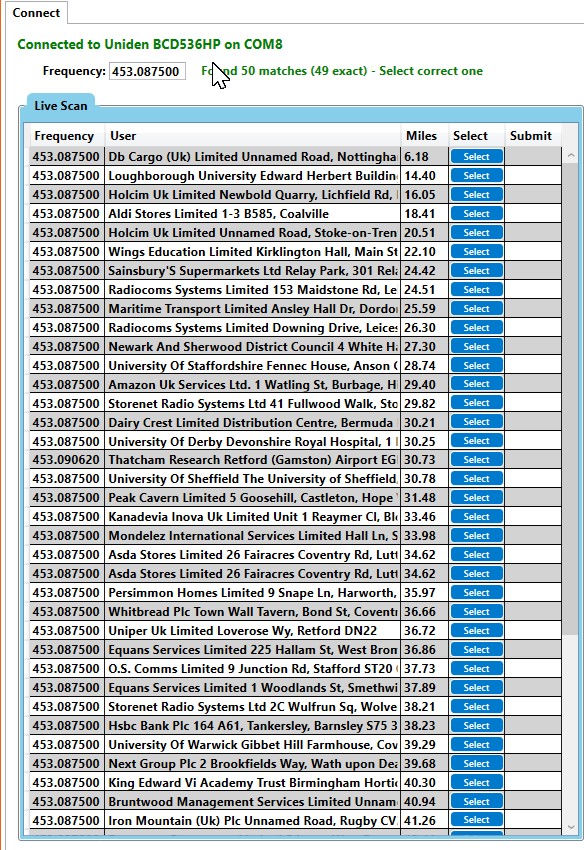
Squawker Connect picks the closest match by distance and frequency proximity automatically, and that becomes the entry logged. The Live Scan list shows every match within a small tolerance of the current frequency, colour-coded by how close a match it is (exact matches stand out from close-but-not-exact ones), alongside a status message like “Found 3 matches (1 exact) – Select correct one”.
Picking the Right One
If the automatic pick isn’t right, click Select next to the correct entry in the Live Scan list. This updates every log entry currently showing that frequency to match your choice, not just the one row.
You can also reopen this picker later from the Log History grid — click the “…” button on any logged row to bring up the same match list again, in case you want to correct something after the fact.
Squawker Connect remembers your choice for that frequency — if the same ambiguous frequency comes up again, even after a restart, it’ll use your previous pick automatically rather than asking you to disambiguate it again.